Google Drive security limitations: where access and visibility fall short
- Date:
- Author: Kurt Wood
- Category: Drive management
Google Drive is good at the parts of security Google controls – encryption, malware scanning and the infrastructure underneath – but it does have limitations when it comes to access over time:
- files stay shared after the people, projects and clients they were shared for have gone
- Drive’s audit log only keeps six months of history
- seeing who can open what across the whole domain needs an Enterprise license and BigQuery
- Gemini can now find anything a user is able to open
Under Google’s model, these four considerations are the customer’s responsibility.
Google’s platform is highly secure, but access is generally open-ended, and Google doesn’t do much to help you clean up old access
Drive encrypts files, and Google scans anything shared from outside your organization for phishing and malware (although it’s only up to 100MB, and not every file type can be scanned).
But, while Google gives admins control over sharing, it doesn’t do much to help clean up old access. Drive applies whatever sharing your users set up, and that access often stays in place long after it’s needed.
By default, Google also holds the encryption keys: client-side encryption, which stops Google reading file contents, is only available on Google’s top-tier editions, and you can’t use Gemini to work with any files protected in this way.
But for most organizations, the bigger risk is the wrong people still having access, rather than Google reading files.
Google Drive doesn’t remove access automatically
When someone has permission to access a file, that permission stays in place until it’s removed, and Drive doesn’t prompt users to review old sharing.
This means it’s very common for access to stay in place for a long time when it’s not needed, and this can create a security risk.
There are five common ways access ends up outlasting the reason it was given.
Leavers’ files stay shared after their account is suspended
Google says that when a user is suspended, collaborators “will retain their ability to view, edit, and collaborate” on documents that user shared with them. Transferring the files to a new owner doesn’t change who can see them.
So if a leaver shared a proposal with a client’s personal Gmail address three years ago, that address can probably still open it. (See our guide to Google Workspace offboarding for all the other things left behind after a user is suspended.)
“Anyone with the link” sharing lasts indefinitely
A file shared with “anyone with the link” stays open to anyone who has the link until the owner changes the setting.
Japanese company Ateam left Google Drive files shared this way from March 2017 to November 2023, exposing 1,369 files containing personal data for 935,779 people.
Shared Drives can be left without a manager after a few people leave
Shared Drives belong to the organization rather than a person, so their files don’t disappear when someone leaves. But once the last manager has gone, only an admin can add or remove members, which they do from the Admin console.
Admins can filter for Shared Drives with no managers, but the list doesn’t show external members or public links, so each Drive has to be checked individually.
You can’t restrict a single file inside a shared folder anymore, so anyone with access to the parent folder can see every file in it
Since Google’s Drive permission changes (phased in from late 2025 through 2026), having access to a parent folder means you have access to all the files within it. You can’t restrict a single file inside a shared folder any more, so exceptions have to sit in separate “limited access” folders.
That makes permissions easier to follow, but it also means it’s common for a greater number of files to be accessible to a greater number of people than before.
Third-party apps keep their Drive access until it’s revoked
When someone connects an app to their Google account, it may receive a refresh token that keeps working as long as it’s used regularly. Changing the user’s password doesn’t normally revoke Drive access either.
Google considers full Drive access a high-risk scope, and admins can limit which apps get it, but only once they’ve set those controls up.
Drive’s audit log only goes back six months, so you often can’t see how old exposure happened
Google keeps Drive log events for six months, along with admin and OAuth token events, on every edition.
But most of the problems above build up over years, so six months can be quite a short window to see what was accessed and when.
If a file was made public two years ago, the record of who shared it, and who has opened it since, has already gone, unless the logs were exported to BigQuery or a SIEM at the time.
The log has two other gaps:
- it records events rather than current access, so it shows that a file was shared, but not who can open it today
- Google says “most Drive audit events are logged only for files owned by users with supported editions”, so a domain with a mix of licenses likely has blind spots
If auditors are likely to ask who could access a file last year, as well as today, the logs need to be exported before they expire. Our article on audit trails for Google Workspace compliance explains how an audit trail differs from a log.
Seeing who can access what across the domain requires an Enterprise license and BigQuery
Google has added better visibility tools over the last two years, but almost all of them are limited to Enterprise editions:
| Action | Business Starter, Standard and Plus | Enterprise Standard and Plus |
|---|---|---|
| Review Drive log events (six months) | Yes, but not every event is logged on every edition | Yes |
| Find Shared Drives with no managers | Yes (Starter, Standard and Plus) | Yes |
| Search and act on Drive events with the security investigation tool | No | Yes |
| Export every file’s permissions to BigQuery (Drive inventory reporting) | No | Yes |
| See each file’s combined external exposure (external sharing insights, added August 2026) | No | Yes, but off by default |
| Stop sensitive files being shared (DLP for Drive) | No | Yes |
Business editions are capped at 300 users and cost $7, $14 or $22 per user per month on an annual plan. Enterprise pricing is by quote.
Even on Enterprise, Google’s domain-wide view of current sharing is a BigQuery export. That needs a Google Cloud project with billing set up and someone who can write SQL, so it’s not necessarily the easiest to implement.
Google’s newest controls, such as DLP rules and sharing boundaries, also apply to new sharing rather than cleaning up what’s already been shared.
On Business editions, admins are left with the Admin console, the Drive API or command-line tools like GAM. But this doesn’t suit everyone: as one Business Standard admin said in a Google forum thread about listing externally shared files: “I am a designer and unfortunately not a developer, so the code solution is beyond my reach.”
Gemini doesn’t give anyone new access, but it makes overshared files much easier to find
Google says “Gemini only retrieves relevant content in Workspace that the user has access to”. That means Gemini respects your sharing settings, but it doesn’t add any restrictions of its own.
That can be important, because oversharing used to be partly hidden: someone had to know a file existed, and where to look, to find it. With Gemini, they can just ask, and Gemini can go trawling through old files for which access should have been revoked a long time ago.
Google’s controls for limiting what Gemini can read (DLP, information rights management and client-side encryption) are mostly Enterprise features.
Third-party AI tools connected to Drive work the same way, and bring risks of their own. At Black Hat in August 2025, researchers at Zenity showed how a document with hidden instructions, shared into someone’s Drive, could make ChatGPT’s Google Drive connector search for API keys and send them to an outside server, without the user doing anything.
OpenAI has fixed that particular technique. But any AI tool connected to Drive can read whatever the user can, including files shared with them from outside the organization.
Most oversharing is old, and spread across individual users’ My Drives
There isn’t much independent data on Drive oversharing, but in October 2026, the US General Services Administration’s Inspector General reported that 116 files containing controlled unclassified information had been shared with every GSA user, including contractors who didn’t need them. That came from a limited search of a Drive holding around 2.5 million documents.
Vendor research covers more files but is less rigorous: when Metomic scanned around 6.5 million Drive files in 2023, it found that 34.2% were shared outside the organization and more than 350,000 were public.
A lot of external sharing is legitimate work with clients, and this data is directional, but it chimes with what admins often describe: files are shared one at a time from individual My Drives, rather than through Groups or Shared Drives, where access is easier to manage.
You can cover these risks with a regular access review
Since access to files in Google Drive isn’t revoked automatically, the only way to keep it under control is to review it regularly.
Every quarter, and after any large round of leavers, it’s worth checking which:
- files are shared publicly or with “anyone with the link”, and whether they still need to be
- Shared Drives have external members, and whether you still work with them
- Shared Drives have no manager
- leavers’ files are still shared, and who with
- top-level folders are shared with the whole organization or a large group
- third-party apps have full Drive access
- Drive logs are being exported somewhere, and whether they’ll be kept for longer than six months
Frameworks like HIPAA and NIS2 expect evidence that access is reviewed periodically.
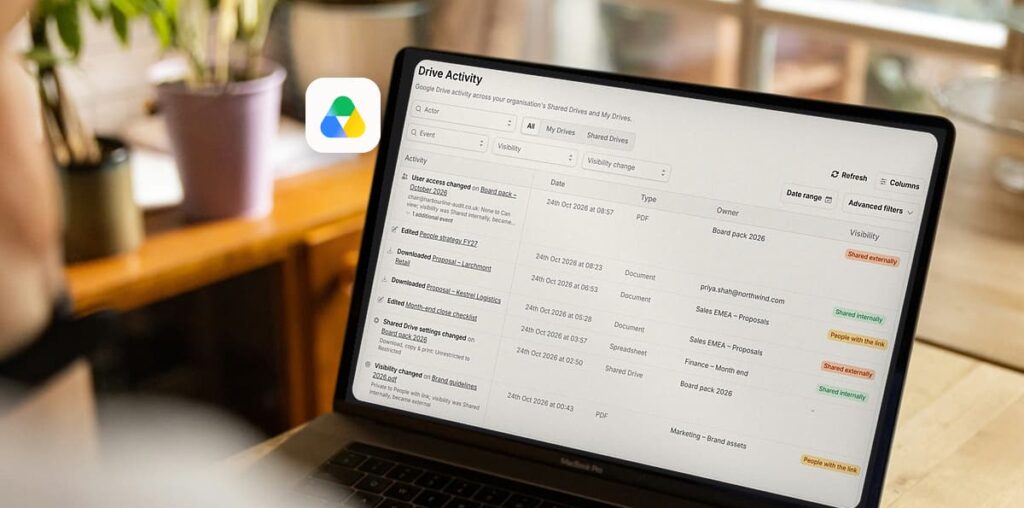
CloudM Drive Management shows who can access what across the domain, without BigQuery
Drive Management in CloudM Automate & Protect gives admins a single view of Shared Drives, users’ My Drives and external access, so a quarterly review is a matter of filtering rather than writing scripts.
- Shared Drives: filter by organizational unit, members, managers and permissions, find Drives without a manager, and review external members, sharing settings and public access.
- My Drives: see a user’s files and who they’re shared with, without signing in as that user, and change permissions or transfer ownership of individual files.
- Bulk changes: on the Enterprise plan, find every Shared Drive that matches a set of conditions and make changes across the whole set, such as removing public links or members.
- Leavers: automated offboarding workflows transfer ownership and remove licenses, and Archive keeps leavers’ data in your own Google Cloud Storage bucket, so accounts can be deleted without losing records.
For more on day-to-day governance, read our guide to managing Google Drive at scale, or compare Automate & Protect plans.